
Showing posts with label TCEA. Show all posts
Showing posts with label TCEA. Show all posts
Monday, February 11, 2019

Tuesday, February 23, 2016
Flippity
There are a lot of ideas for flashcards on the Internet, but this one appears to be very quick and easy. Flippity.net takes a Google spreadsheet and turns it into flashcards, a quiz game, a progress tracker, or a certificate of completion.

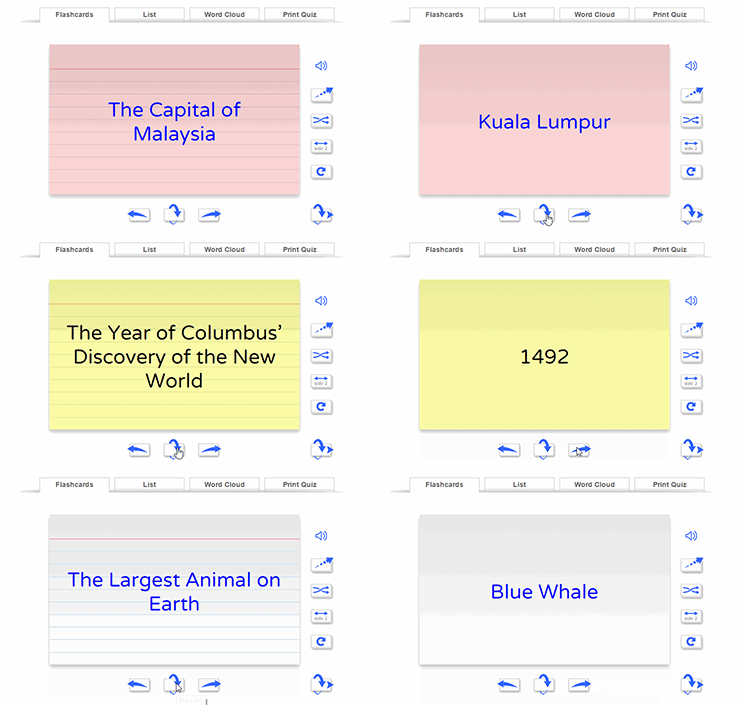
Click the link for Instructions & Templates to see how easy it is to create your own flashcards.
Wednesday, February 3, 2016
Tools You Can Use Tomorrow

Leslie Fisher is always entertaining. She is one of the must-see presenters every year at TCEA, with her "let me see how much information I can pack into an hour" attitude. I always walk away with a lot of great ideas. This year was no different. The line going into her session wrapped around the corner, and a few hundred people were turned away. We got in!!!
Here is a list of amazing tools that I think you can use tomorrow.
Tools you can use tomorrow
Tuesday, February 2, 2016
TCEA Convention

I have a schedule full of coding, robotics, and 3D printing, as well as a librarians' academy.
Location:Trinity St,Austin,United States
Tuesday, February 17, 2015
TCEA Takeaways Cont.
from Keri
After being at TCEA for three days, there is no way that I can just share one thing! While in Austin I learned SO much, from differentiation with technology to gaming in the classroom, it's hard to digest it all. However, I would say that the most valuable thing I learned while I was at TCEA with 17,000 other educators was COLLABORATION! I'm not only talking about collaboration among other teachers, but also collaboration among students. Here's a little bit of what I learned...
 One fascinating session I went to was "Sweet Googly Moogly" with Cathy Moak as the presenter. https://sites.google.com/a/esc6.net/sweet-googly-moogly-remix/ This site has all of the info that we learned in the session. It also has shortcut QR Codes that will take you to other places for more info. She is also on Twitter @edtechdoc. Here are some google tools that may be worth taking a look at...even if you can't implement them until next year! I've already got several of these tools on my agenda for next year!
She taught us about ALL things Google! WOW! It was information overload, but now that I have had some time to sift through the information, it's really quite worth it! I have an android phone (not apple), so I'm already a BIG Google fan. Here's the link
- Google Calendar-Create a class calendar and post it on your class website or on your class Facebook page. This is a great way to remind parents of class parties, project due dates, CA test dates, etc. Instructions are on her website, but the calendar is very user-friendly. It will just take some time to go in and play around with it.
- Google Docs-This is one of the MOST important collaboration tools! Students can collaborate by writing papers together (revising and editing), taking class notes, working on a project, etc. Google Docs can even be used as a staff. That's what Shelley uses when she sends out sign up sheets for coding, bringing treats, etc. My pod uses it in 5th grade for Marvelous Monday tutorials so that we don't have to send sticky notes around. It's a web-based document (Excel, Word, etc) that can be edited by multiple users. Just think of the collaboration that can take place with this kind of tool! Here's the link to her page on Google Docs https://sites.google.com/a/esc6.net/sweet-googly-moogly-remix/docs
- Google Draw-Students can create their own Venn Diagrams or other Graphic Organizers
- Google Forms-You may have seen these being used by Donna when she wants us to complete a survey, but you can use them in your classroom, too! You can create a quiz, survey, quick assessment, or ticket out of the classroom.
- Google Presentation-Cathy's tag line on this one was, "1990 called and wants its PowerPoint back!" LOL! The students can use Google Presentation just like PowerPoint, but they can collaborate much easier. You can also use it for daily instruction, welcome work, rubrics, etc. Visit this link for examples https://sites.google.com/a/esc6.net/sweet-googly-moogly-remix/presentation

The BEST thing about all of these???? They are FREE! Just open up your Google Chrome browser and they are right there in Google apps. I've talked with Shelley about having more training on these tools. Hopefully w will soon! Until then, go play around and see what you can use. You don't have to reinvent the wheel!
There are several teachers out there already using these and MANY other tools in great ways...check out some more helpful sites here:
- http://icafe.lcisd.org/
- iTunes U-entire system of collections from iBooks, on-line textbooks, TASA are courses created by teachers in TX (aligned with the TEKS)
- funela.weebly.com-Bringing ELA alive in the classroom-Using Technology to Improve Reading
TCEA Takeaways
TCEA Takeaways
Where to begin? Evelyn, Keri, and I learned so much at TCEA, and we are so excited about using everything we learned. We even made the front page of the TCEA magazine. ;) All of the presenters have posted their handouts on the TCEA Convention website.

My biggest takeaway is Twitter. I know it is old news, but I have promised myself that I will use it every year after TCEA. I always lose interest and quit tweeting. This year, I vow to use Twitter for professional development. It is a great way to create a Personal Learning Network (PLN). In the beginning, I created a Twitter account because it's what all the cool kids were doing. Now, I see the value in following fellow educators with similar goals and interests. I have found more resources through my Twitter PLN. This week I even participated in my first TweetChat. There are many scheduled chats on Twitter. You just have to find one that interests you and follow the designated hashtag at the specified time. I participated in a Texas Librarians Chat #TXLchat and we discussed what we learned at #TCEA15.
Here are a couple of tools that will make Twitter a little easier to use:
- TweetDeck - a website that allows you to create columns of different hashtag searches that you are following
- HootSuite - organize all of your social media in one place and post on all sites at once
- FlipBoard - online platform and mobile app that organizes all social media and news into one place, giving it the look and feel of a magazine. Search for particular topics or hashtags and "flip" the results into a magazine that you can follow.
- TweetChat - enter a hashtag to begin following a chat. TweetChat organizes the discussion, allowing you to reply, retweet, or favorite.

If you're interested in learning more about Twitter for professional development, talk to me. My end goal is to create a hashtag for our campus discussions and learning.
Follow me! @sstatler
I have a lot of great sites, apps, and tools that I want to share with you, but I don't want to overload you with too much information. I plan on creating a Google Sheet to share all of our great resources. Please ask one of us if you have any questions or need some suggestions for integrating technology. I really look forward to watching our campus use technology in new ways.
Stay tuned for more TCEA goodies from Keri and Evelyn!
Subscribe to:
Posts (Atom)